
Parameterizing recorded steps
The Recorder automatically detects dynamic test data in your steps and converts them into parameters. Use the expand button to open the BlinqIO Editor and view all test parameters.
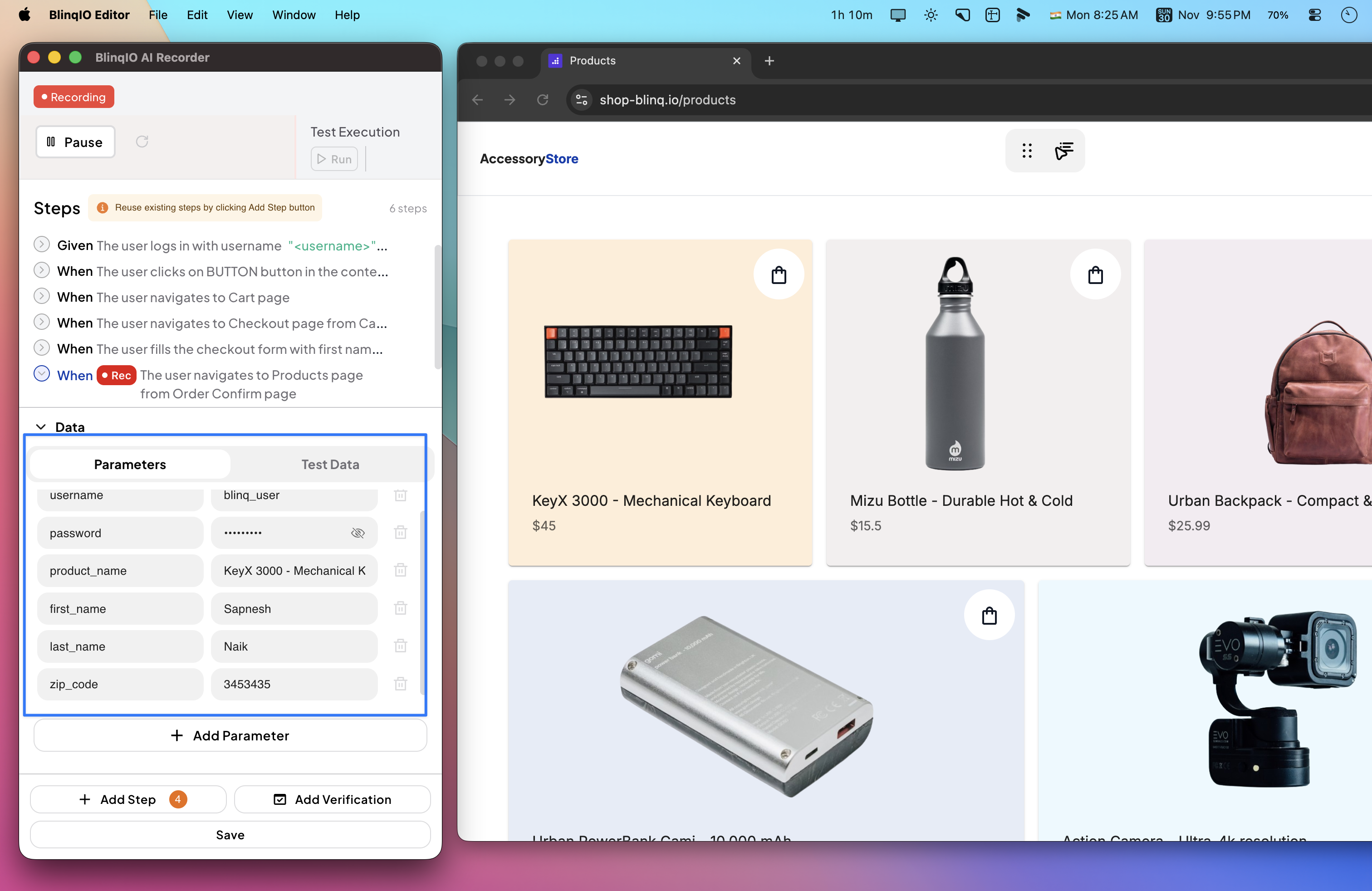
You can edit parameter names or values, and all linked steps update automatically.
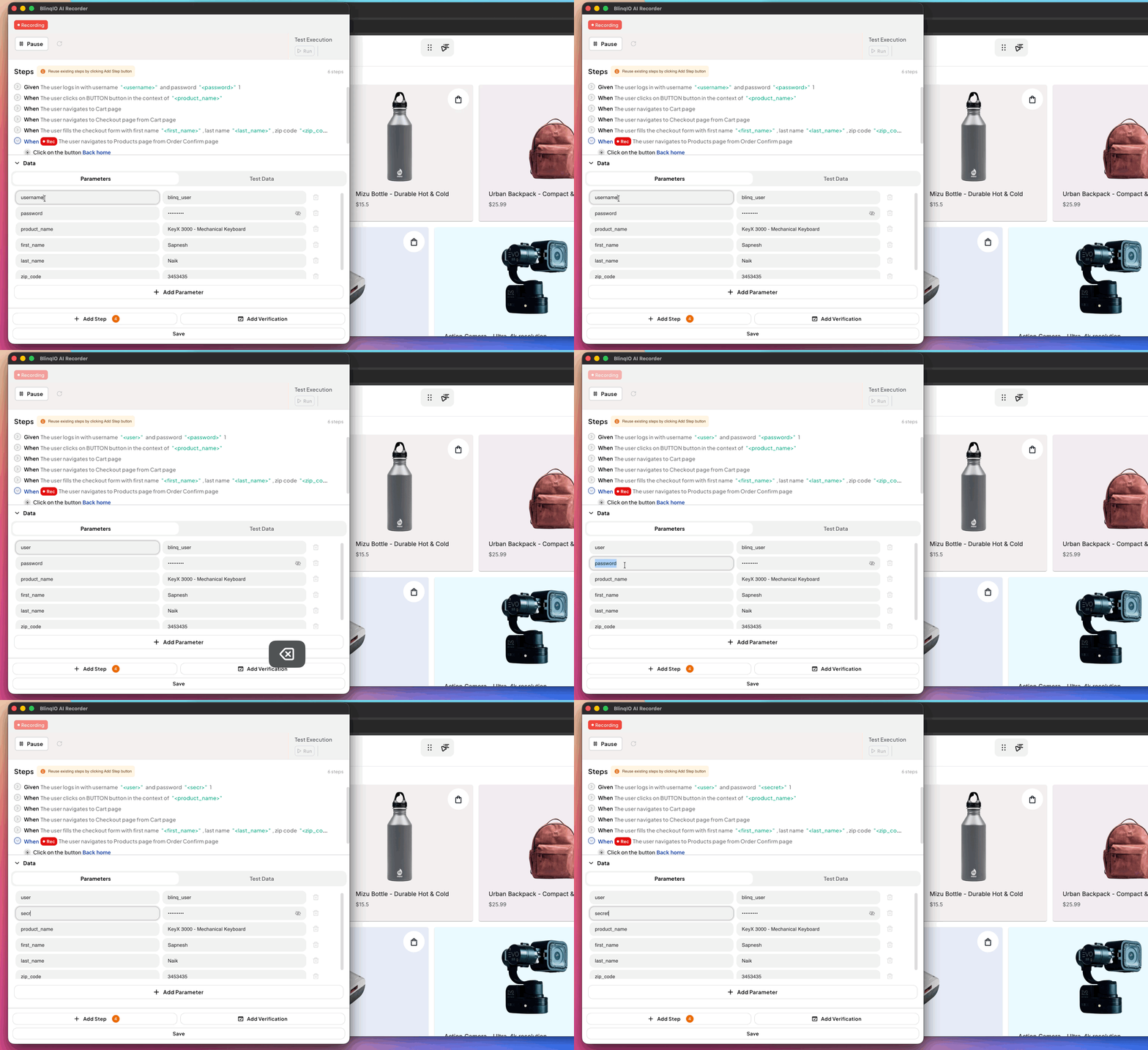
Rename Parameters
When you rename a parameter, all test steps that reference it are updated instantly.
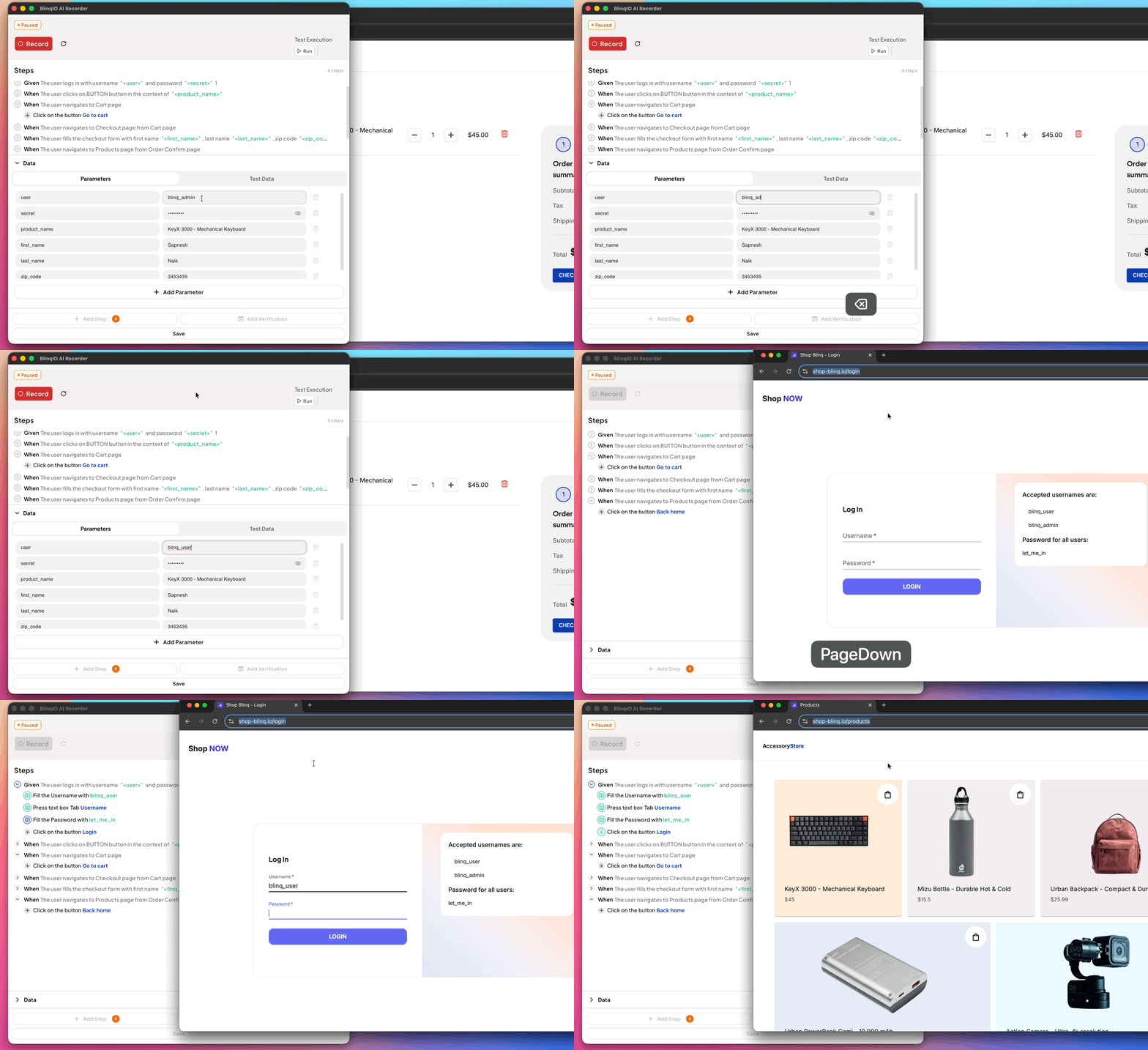
Change Parameter Value
Edit the value of a parameter to apply the new data in all related test steps.
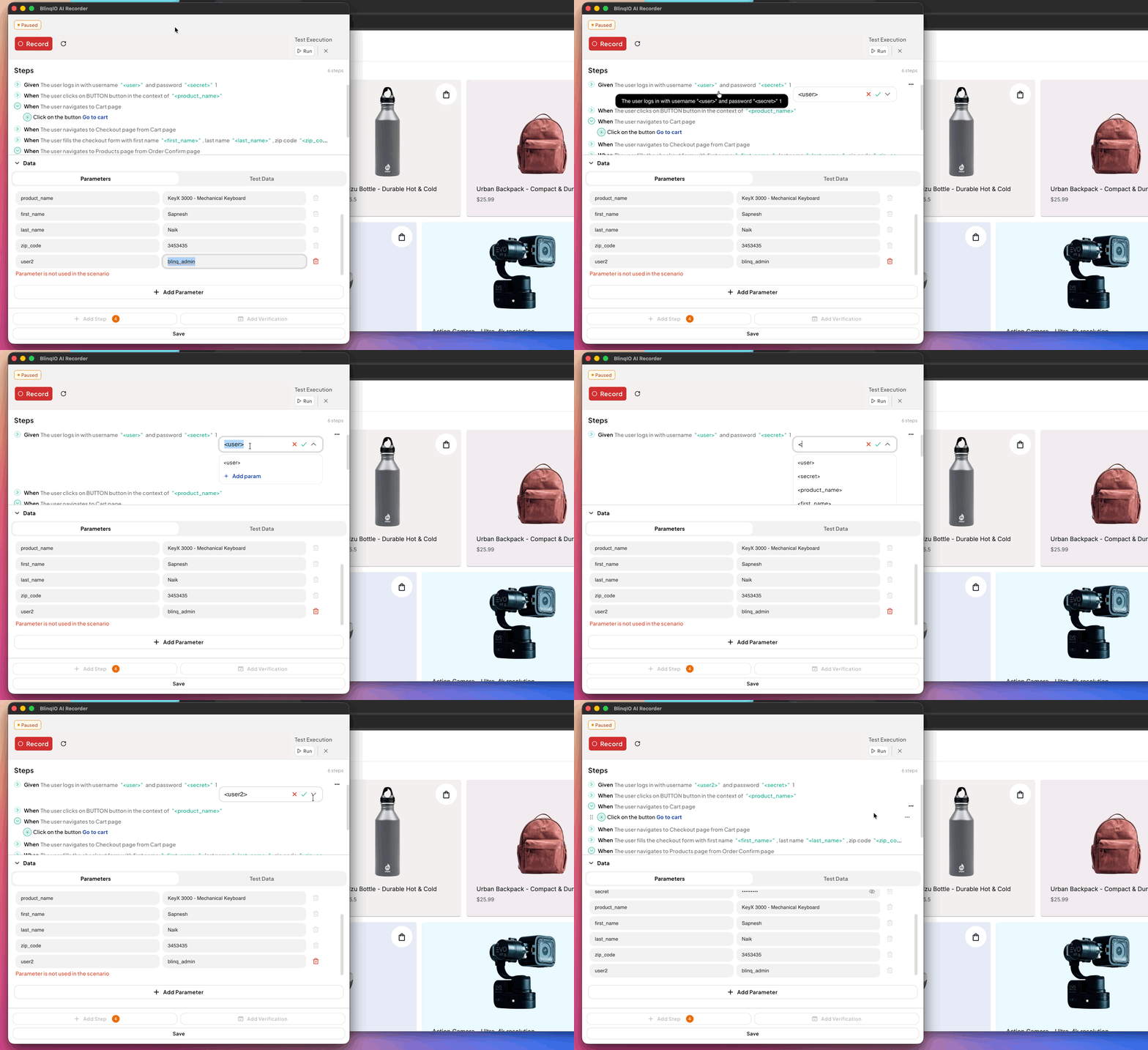
Add a New Parameter and Use It in a Step
Follow these steps to create and use a new parameter:
In the Parameters section, click the + Add Parameter button and enter a name and value.
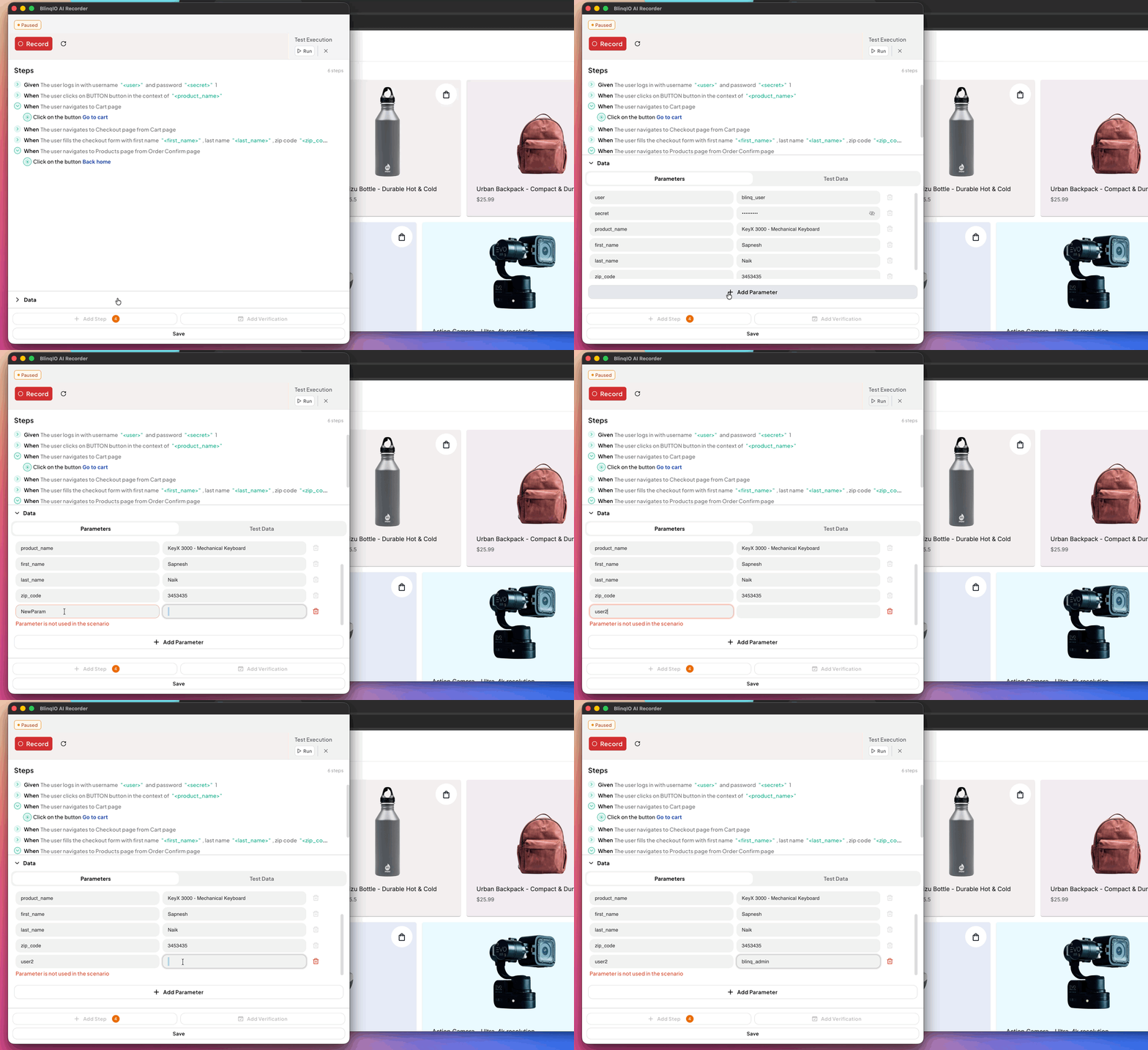
Click the parameter to replace in a step. Clear its value in the input and replace it with your new parameter name. Note: The new parameter value starts with
<.
Run the scenario to confirm the test works as expected.
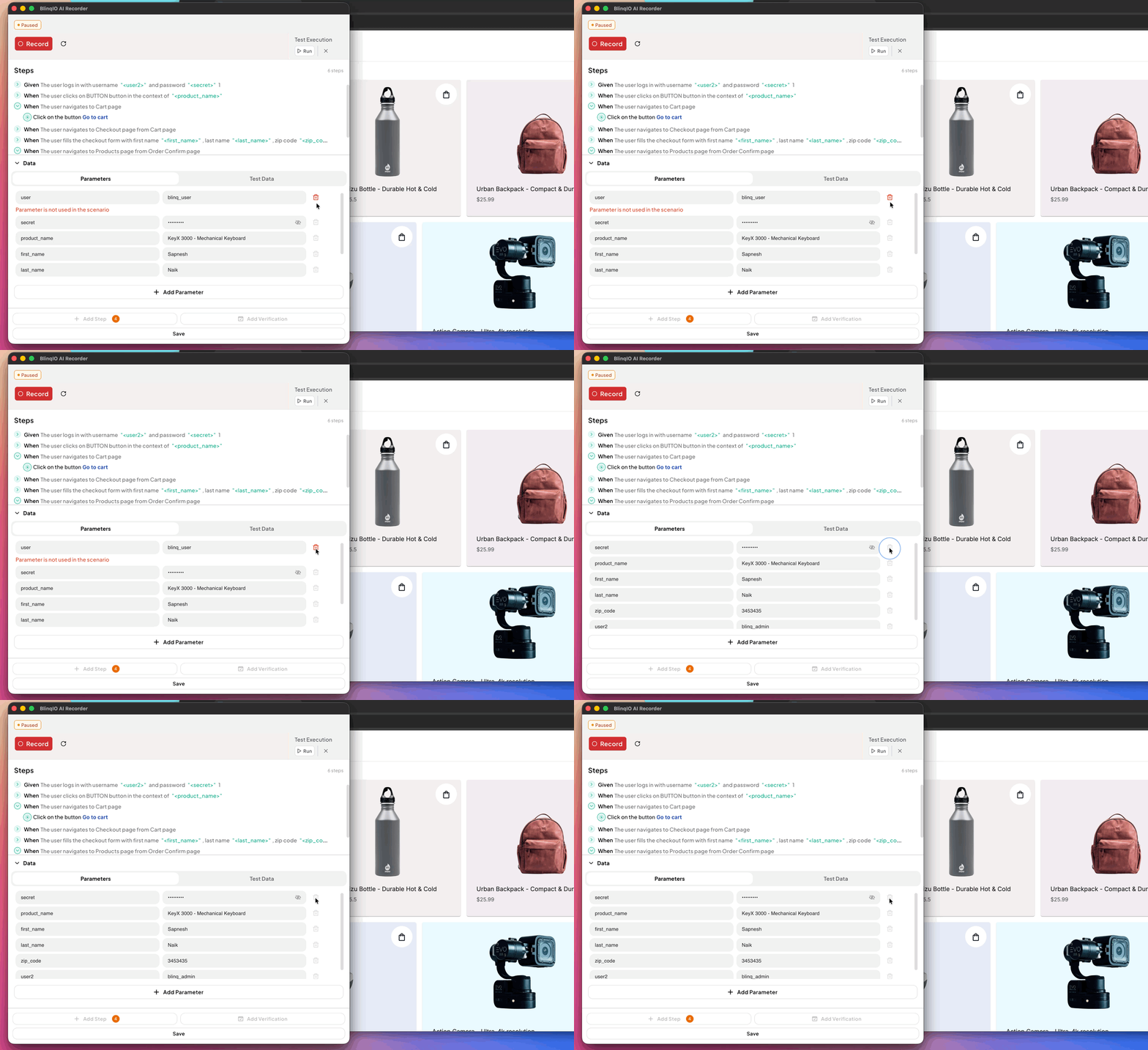
Delete Parameters
Click the delete icon next to a parameter to remove it. A parameter that is still in use cannot be deleted.
Best Practices
- Use clear, descriptive names for parameters. Example:
user_emailinstead ofp1. - Avoid duplicate parameters. Reuse existing ones where possible.
- Test changes after editing or adding parameters to ensure accuracy.
- Keep parameter values realistic to reflect real-world data.