
Waits Steps in AI Recorder
The AI Recorder provides two ways to add waits in test execution between steps:
- Conditional Wait Step waits until an element meets a specific condition or the timeout expires. For example, wait for a component to be
visible,hidden,enabled,disabled,checked,unchecked, oreditable. - Sleep Step waits for a fixed amount of time. For example, wait for
30seconds.
Use these options to handle timing issues caused by slow-loading pages, dynamic UI updates, or delayed element states.
Conditional Wait Step
The Conditional Wait step pauses execution until an element reaches a chosen state. This makes tests more reliable because they continue as soon as the condition is satisfied, rather than waiting for a fixed delay.
- If the condition is met within the timeout, execution proceeds immediately.
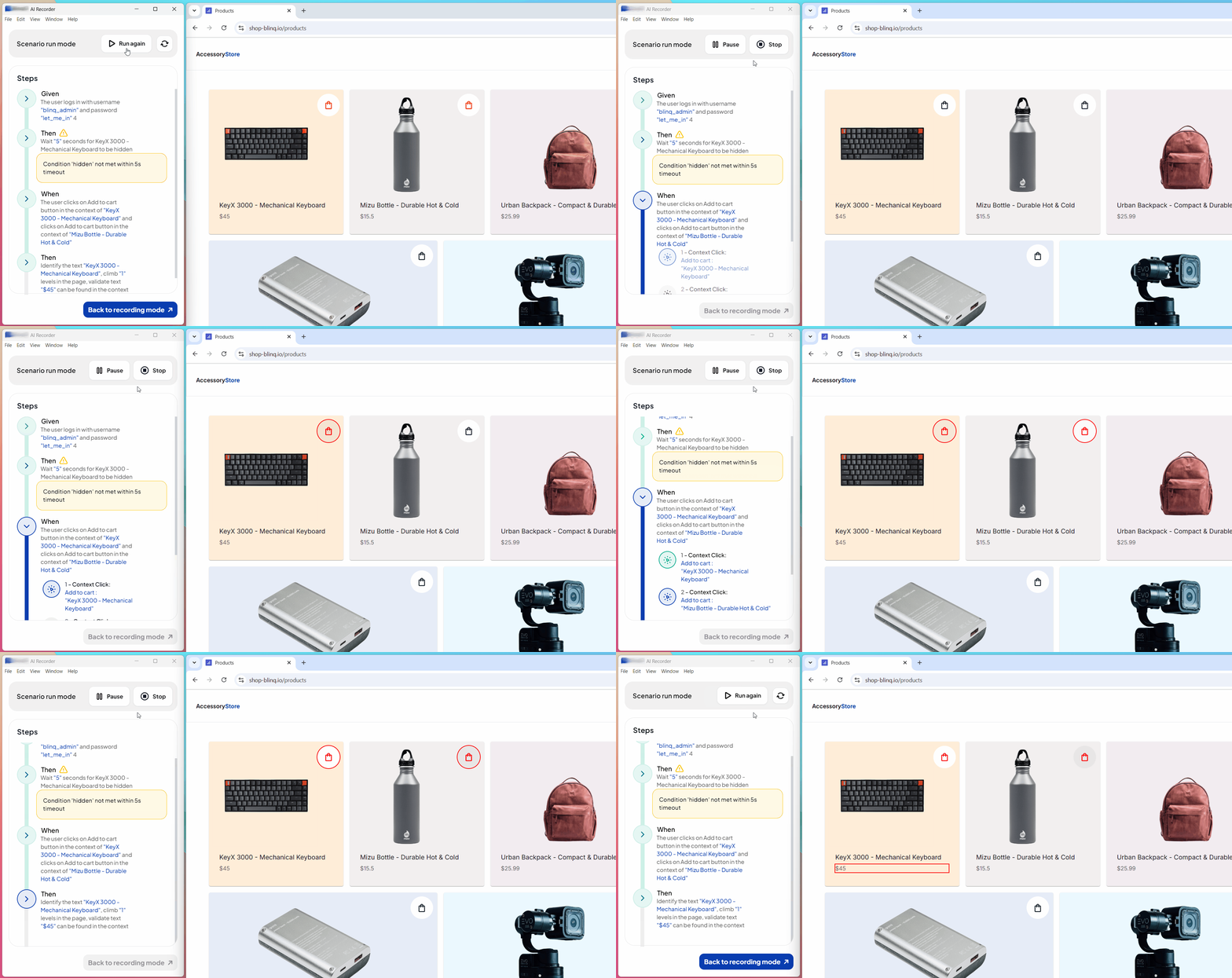
- If not, the step waits for the entire timeout, shows a warning, and then moves to the next step. The scenario does not fail.
Add a Conditional Wait Step
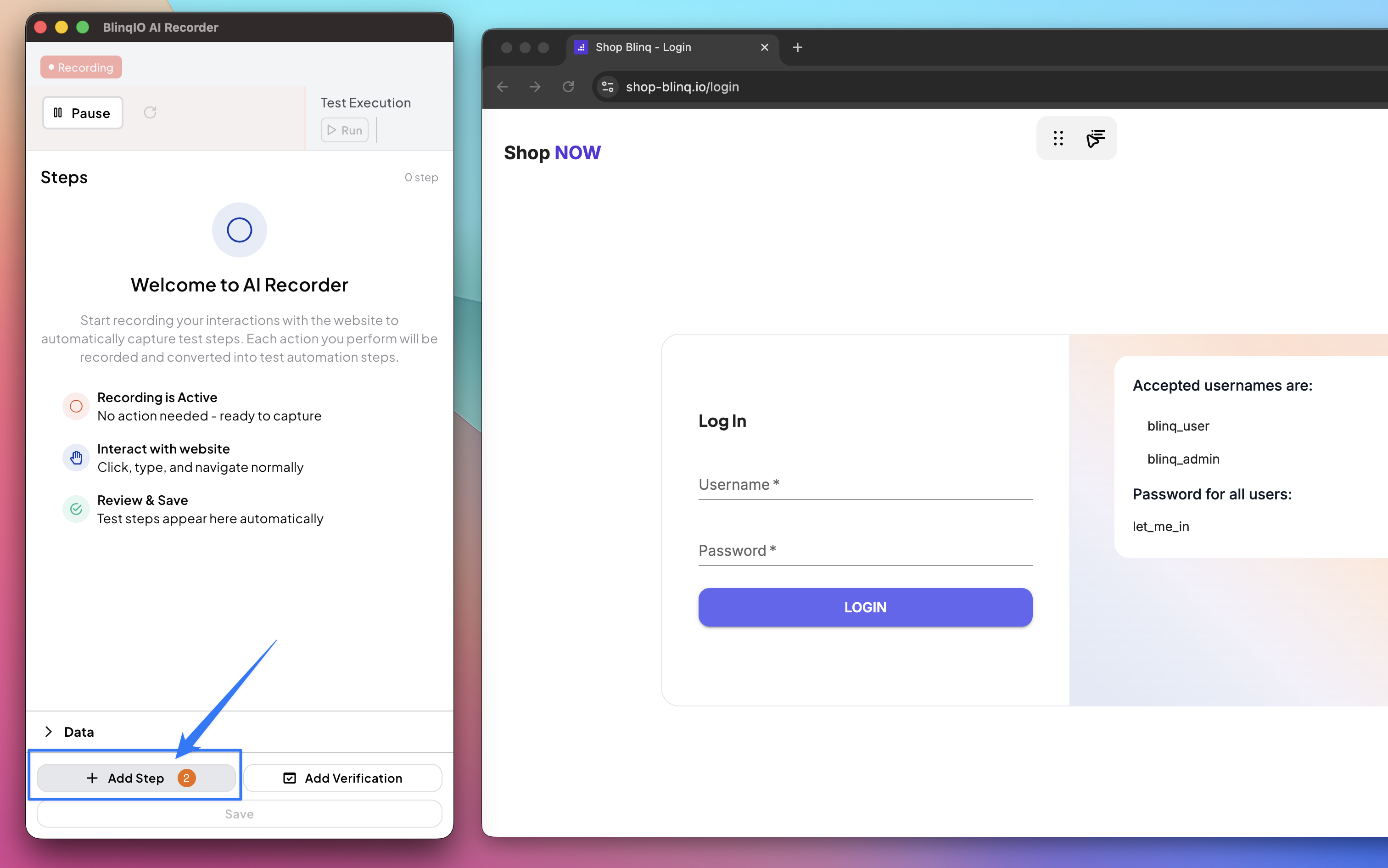
Open the AI Recorder and click + Add Step. This brings up the custom steps menu.
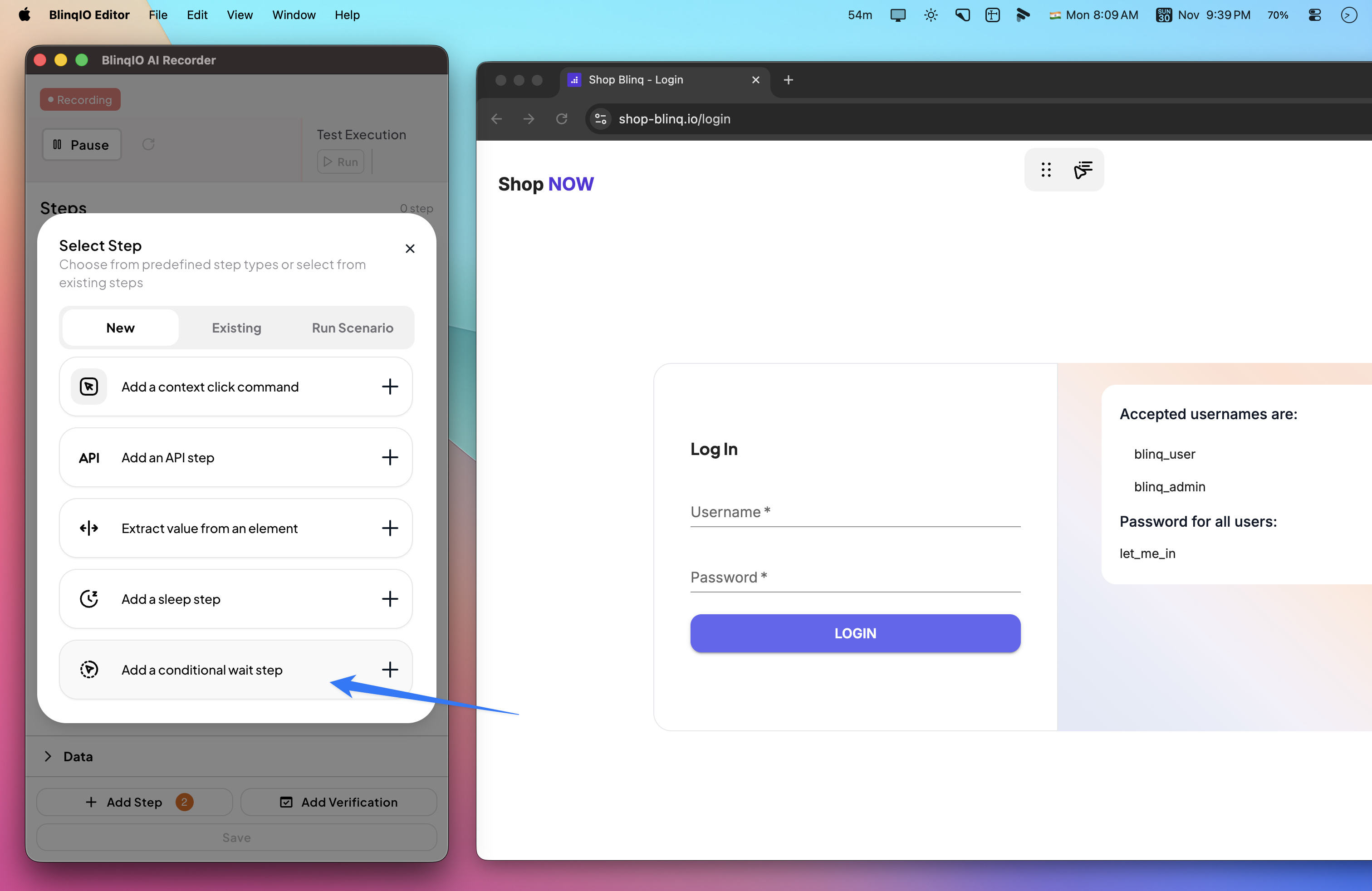
Select Add a conditional wait step. This brings up the select element pop-up.
Select the element you want to apply the condition to.
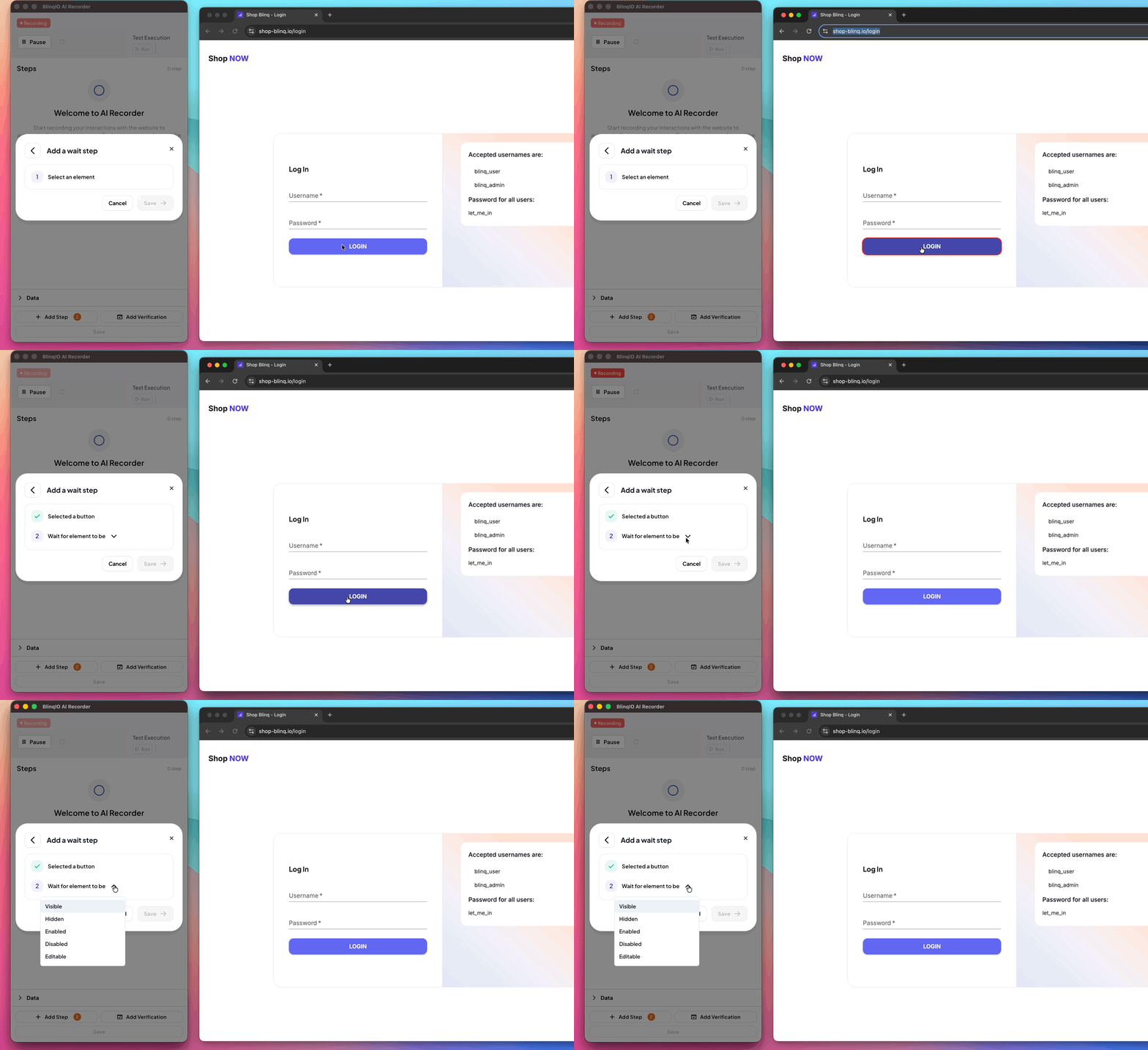
Choose one of the available conditions:
- Checked / Unchecked (for checkboxes, radio inputs, and option elements)
- Visible / Hidden
- Enabled / Disabled
- Editable
INFO
Available conditions depend on the element you select. The Recorder adjusts the list dynamically.
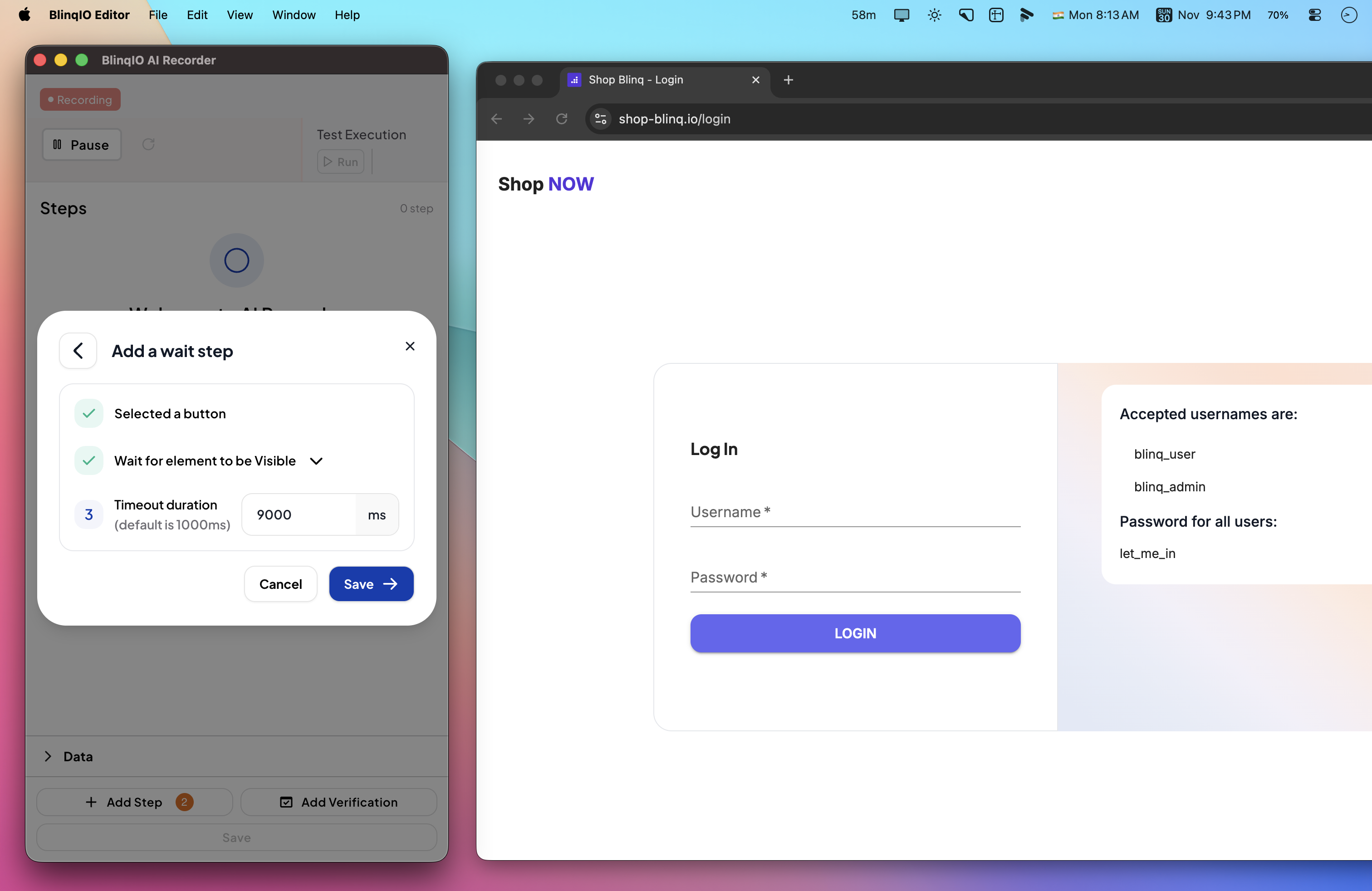
Enter the timeout duration in milliseconds (default: 1000 ms). Increase it only if the condition usually takes longer. Click Save.
Behavior During Execution
- If the condition is met before the timeout, execution continues to the next step immediately.
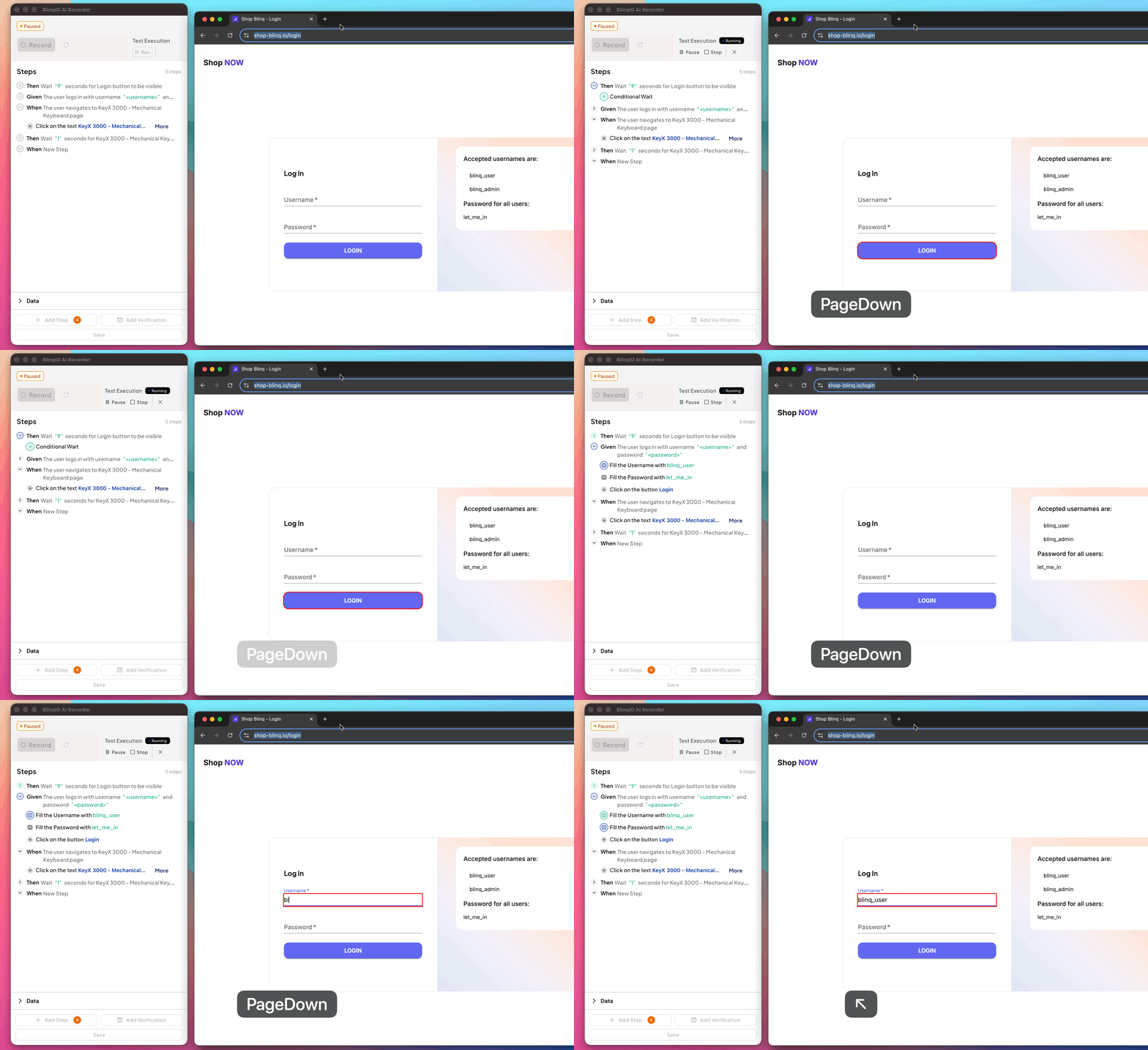
- If the condition is not met within the timeout, the Recorder waits the full duration, then logs a warning. Execution continues.
How It Appears
- In Features:
Then Wait "X" seconds for element to be [condition]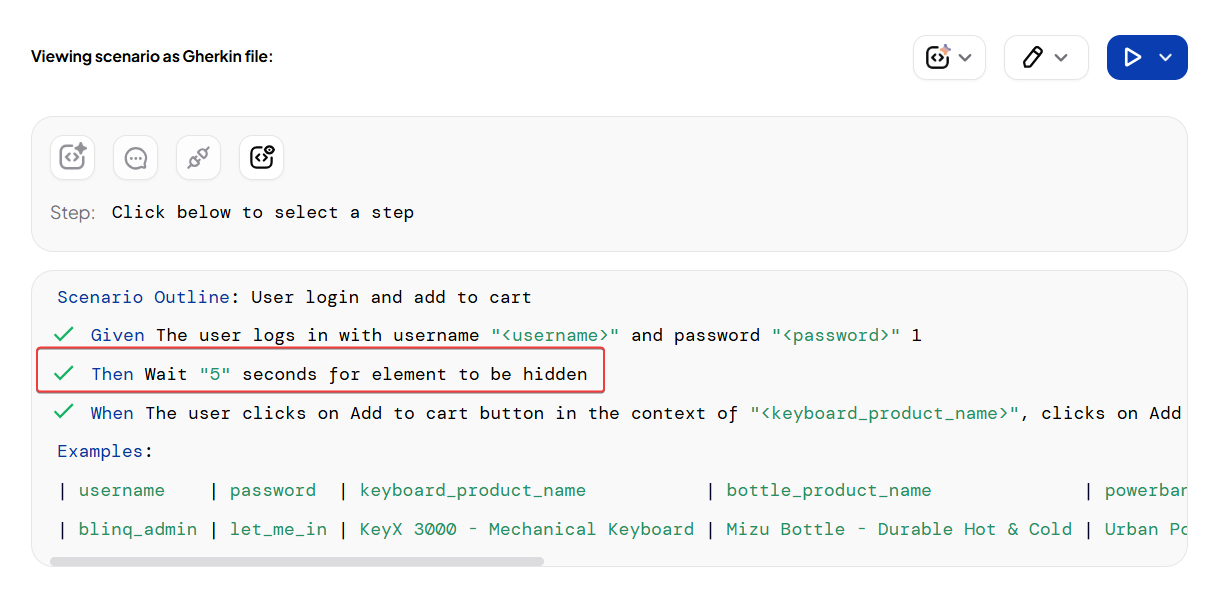
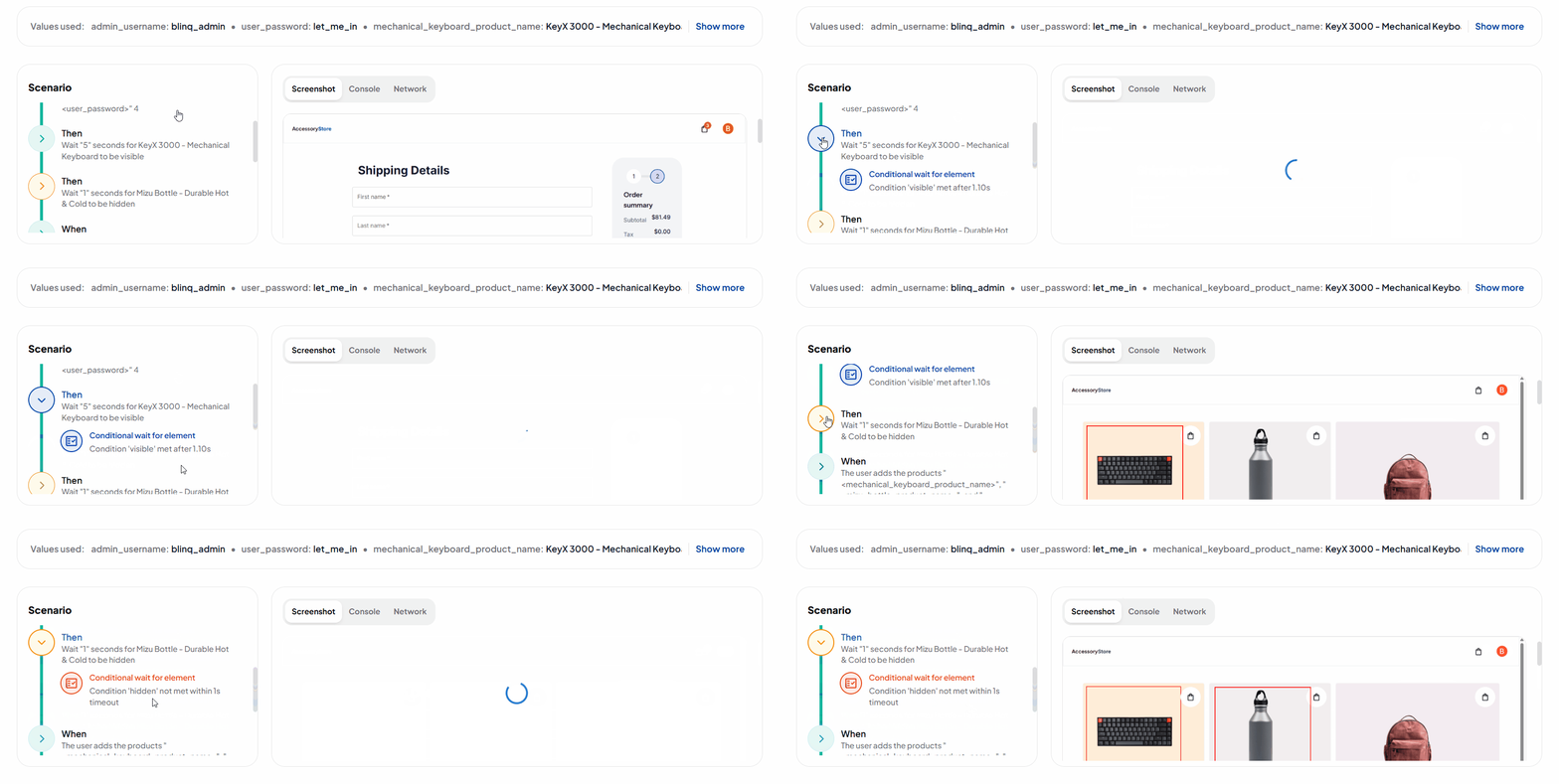
- In Reports:
- Green when the condition is met in time
- Warning if the timeout expires without the condition being met
Sleep Step
The Sleep step pauses execution for a fixed period of time. Use this when you know exactly how long to wait for a page or element to load.
- Default wait time: 1000 ms (1 second)
- You can set any duration in milliseconds
Add a Sleep Step
Open the AI Recorder and click + Add Step. This brings up the custom steps menu.
Select Add a sleep step.
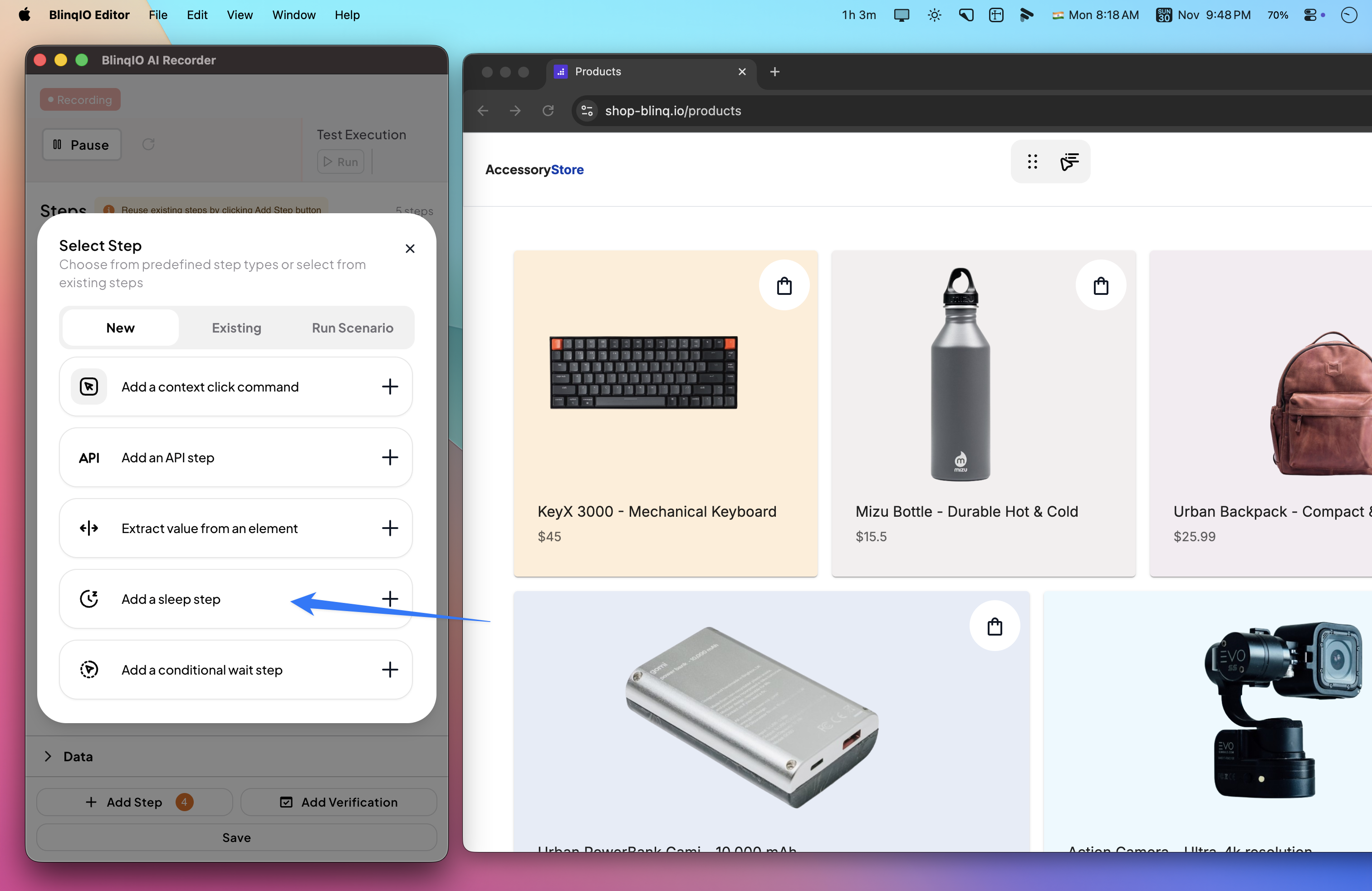
Enter the wait time in milliseconds in the Timeout duration field. Click Save.
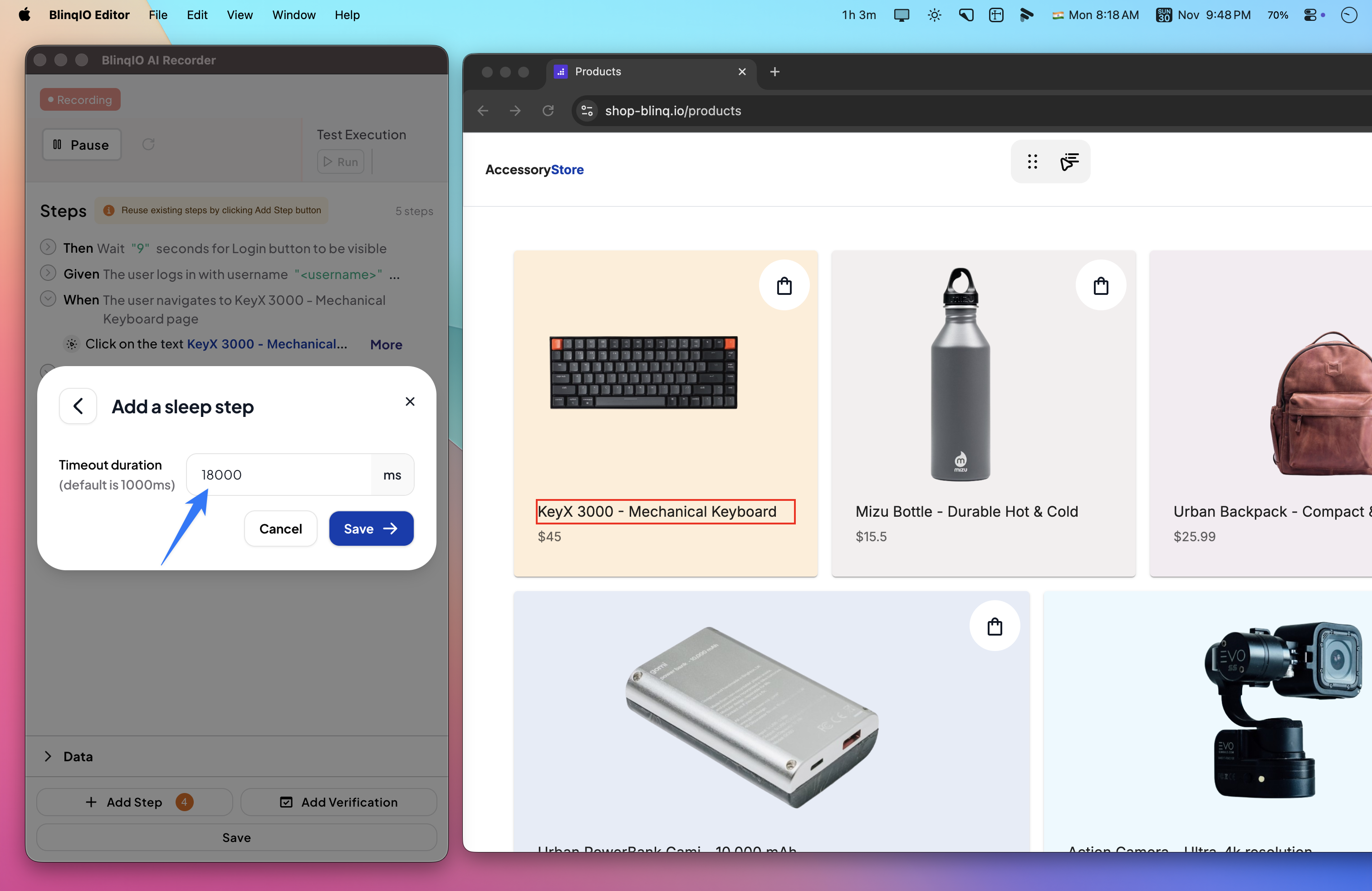
The step appears in the scenario list and pauses execution for the specified time during playback.
In the Features page, Sleep steps display as Sleep for X milliseconds.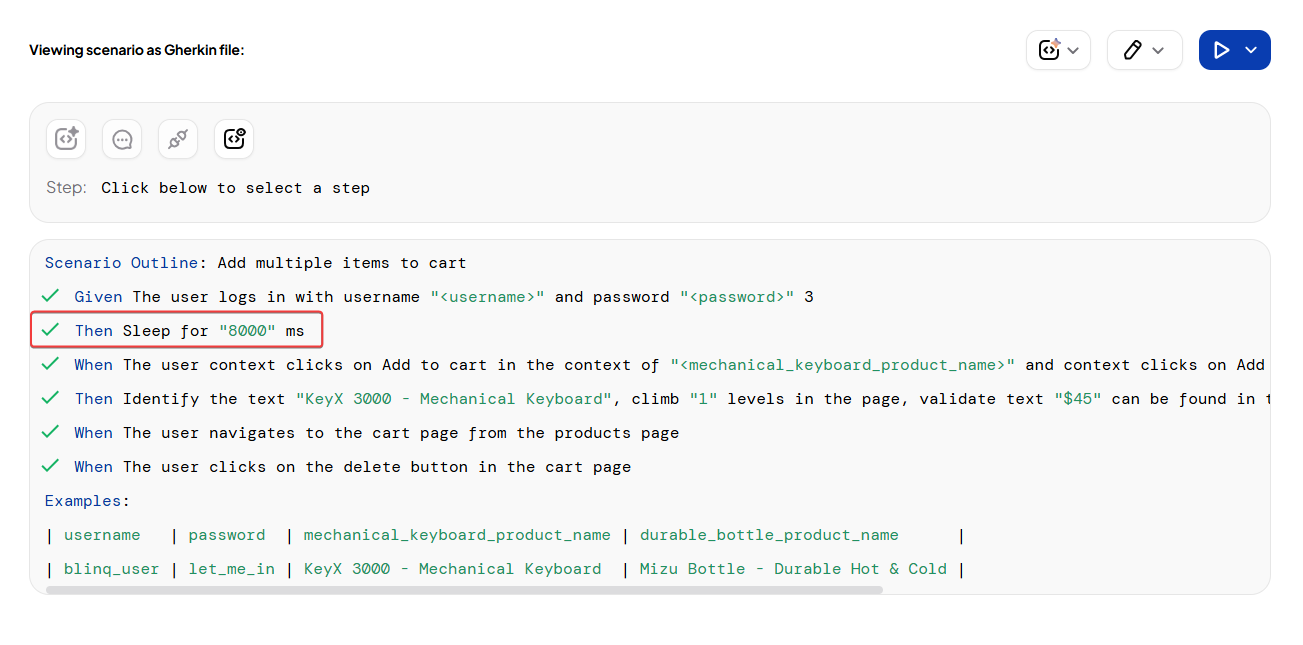
Choosing Between Sleep and Conditional Wait
- Use Conditional Wait when dealing with dynamic UI states like loading spinners, disabled buttons, or visibility changes.
- Use Sleep for short, predictable pauses where a specific time delay is required.
Best Practices
- Prefer Conditional Wait to keep tests fast and reliable. It avoids unnecessary delays.
- Start with short timeouts and only extend when needed.
- Avoid long Sleep steps, as they slow down all test runs.
- Document the reason for waits to help your team understand their purpose.